Minggu, 31 Mei 2009
Cari duit di Internet sebenarnya gampang, jangan dibikin susah donk
Sabtu, 30 Mei 2009
Blogvertise penghasil dollar yang prestise (kenalan yuk)
Setelah sharing tentang BBR, Linkworth dan HMP, sekarang saya mau sharing juga tentang salah satu program PTR yang sebenarnya sudah lama saya ikuti (3 bulanan) tetapi baru sekitar awal mei blog atau website saya di approve dari status probation”status terbatas” menjadi full approve-ners. Nama PTR nya Blogvertise (BV). Baru sebulan kurang menjadi full approve-ners BV setiap minggu saya dikasih job 2-4 job (lumayan bukan, nilainya 9-10 usd). Saran saya bagi blog yang belum dicabut status probation di BV penting…ingat penting sekali menyapa adminnya jill dan dana, karena mereka sangat memperhatikan email surat yang dikirim ke mereka pokoknya diperhatikan lah. Begitupun jika beberapa hari anda tidak mendapat job kontak aja jill dan dana, pasti pagi2 anda akan dikasih job...percaya deh.
Beberapa hal tentang Blogvertise :
- BV membayar membernya setiap sebulan sekali, misal kita posting review kita tanggal 29 april, maka kita akan dibayar tanggal 29 mei.
- Pembayaran dilakukan melalui paypal.
-
If your blog has a been approved,, you may be elligible for Grab Bag tasks. Grab bag tasks are tasks that meet certain criteria and that other bloggers declined or have since expired. You can login to your account ad see if there are grab bag icons near your list of approved blogs (go to “Blogs List/Search Status”. Grab Bag tasks are limited to 1 per day, iplease only do one Grab Bag per day. If you attempt to circumvent the 1 grab-bag per entry rule we may cancel your account. Please follow instructions carefully!
- Waktu yang diberikan selama seminggu untuk mengerjakannya tapi lakukanlah secepatnya, ka.rena kalo belum dikerjakan mereka gak akan kasih kita job
- Untuk satu account, kita bisa boleh mendaftarkan lebih dari satu blog.
- di BV Hasil review harus menunggu 1-3 hari untuk mengetahui nya.
- Kalau hasil kita di tolak/decline, kita harus perbaiki dan submit lagi
klik disini untuk mendaftar.
Demikianlah tentang blogvertise dan semoga bermanfaat, untuk menambah pundi dollar sobat.
Cara menukarkan point di Host-My-Post
Berikut ini adalah langkah-langkah untuk menukarkan Poin di Host My Post. Silakan Anda login untuk mengakses akun HMP. Kemudian klik My Account >> Send Point.
Recipient account id: 4
Amount to send: jumlah poin yang akan ditukar, misal: 1600 pts
Your password: *******
Comment: isi pesan atau komentar Anda jangan lupa untuk melengkapi dengan username, account id dan paypal. Misal:
Dear Admin,
I want to sell my points (1600 pts). My username: dspyn; account id: 2455; My PayPal: kangdadang@anukasep.com
Thanks and Regards,
kang dadang
Setelah semuanya terisi dengan lengkap dan benar, silakan klik Submit untuk memproses transfer poin. Proses pembayaran dari HMP sampai ke paypal sekitar 3 - 10 hari.
Semoga sedikit penjelasan saya mengenai Cara Menukarkan Poin di Host My Post bermanfaat. Selamat menukarkan poin Anda. Bagi yang mau bergabung di HMP silakan klik disini.
sebagian sumber dari :teguhtrisusilo
Making Greeting Card with NetFunCards
Kamis, 28 Mei 2009
Hanya 3 Hari Langsung Nyicip $$$ Dollar dari Forum DP
Beberapa blog yang saya kunjungi sering membicarakan forum digitalpoint (forum DP). Katanya cukup mudah meraih dollar di forum ini. Apa sih forum DP itu? Ternyata forum DP itu kalo dianalogikan adalah forum jual-beli semacam kaskus, tetapi lebih menekankan kepada blogging. Ada beberapa teman yang baru join sebulan sudah dapet 400 usd...weh menggiurkan bukan. Dulu.....awalnya sih saya kurang tertarik baru daftar aja gak ngerti musti ngapain, seiring jalannya waktu 4 bulan dah lewat....lupa deh. Blogwalking2 ketemu...weh..tetapi setelah chating dengan seorang teman senior coba2lah saya aktifin lagi tuch di frum DP...tawarin sana sini, eh belom lagi seminggu tawaran saya di oke-kan sama advertiser. wah ternyata baru 3 hari udah bisa menghasilkan dollar 6+10+35 =51 usd. Pasti sobat bertanya-tanya apa sih forum DP itu ? it's means digital point broooooooo. kalo anda mau coba silahkan ke TKP forum.digitalpoint.
Google update rank today
Selasa, 26 Mei 2009
Cara Mengganti Gambar Random Image Header pada Blog Wordpress
Kadang saya sering dipusingkan ketika mau berganti template, sering banyak hal yang baru dan harus belajar lagi dari awal...nah buat yang buat banyak waktu sih tak masalah...tapi kalo buat yang tidak punya banyak waktu untuk update bisa jadi memusingkan. Ini adalah salah satunya ketika saya mau mengganti header yang memiliki gambar yang berganti-ganti pada template wordpress. Template yang saya gunakan adalah primepress dan tentunya theme gratisan. Berikut saya tampilkan rujukan dari hasil googling saya....harap diterjemahkan sendiri.
1. Prepare Your Header Files
header_1.jpgheader_2.jpgheader_3.jpgheader_4.jpgheader_5.jpg
.gif files, then make sure that each header image has the .gif extension. Photographs will look infinitely better if saved as .jpg, though, so that’s why I’ve chosen that extension here.images folder within your active theme directory. Once your images are on the server, it’s time to install the random header code.2. Code It Up!
.php 1). But, if you’re running WordPress, you have nothing to worry about because WordPress compiles pages as PHP by default.<img src="http://path_to_images/header_echo(rand(1,5)); ?>.jpg" width="image_width" height="image_height" alt="image_alt_text" />
echo(rand(1,5)); ?>
header_1, header_2, and so on..php extension. I realize this is confusing, but this is the hand I’ve been dealt. ↑Jumat, 22 Mei 2009
AdSense for Domains Quick Start Guide
If you have an undeveloped domain on which you'd like to display Google ads and earn revenue, this guide will help walk you through the setup process.
To get started, first sign in to your AdSense account and visit the AdSense Setup tab. Then, choose AdSense for domains as the product to begin setting up your domains. Click the + Add new domains link, which will take you to the Add Parked Domains page.
Step 1: Add a new domain to your account

You can add domains to your account in one of two ways: by adding them into the text box line-by-line or by uploading a CSV spreadsheet. Remember to specify the language of your domains as well, and note that you can upload a maximum of 1500 domains.
After the domains are added, they'll appear under the Pending subtab of the AdSense for domains page. All domains submitted are subject to Google's approval per our program policies.
Step 2: Modify your domain registrar settings
In order to allow Google to display ads on your domains, you'll need to modify some settings at your domain registrar. This is necessary to ensure ads show up correctly on your domain. We've provided a step-by-step guide to assist with pointing your domain to Google's server. If you've registered your domain with a common domain registrar like GoDaddy, Enom, Moniker, or others, customized step-by-step instructions are available. We've also provided generic instructions in case your specific registrar isn't listed in our guide.
After you've modified your registrar's settings, your domains should automatically move from the Pending subtab to the Active subtab as soon as the records validate (usually 48 hours or less). If your domain remains in the Pending subtab after this time, check our validation status information page to determine why. If your domain has moved to the Disapproved subtab, learn why this may have happened.
Step 3: Customize using colors

You can customize your domains by adding colors and keyword hints by editing your domain settings. To get to the settings page, click on the domain(s) that you'd like to edit, select the drop-down menu labeled Actions..., and click the Edit Settings option.
Domain Set-up Guide
This guide is intended to assist with pointing your domains to Google's servers, allowing us to display Google ads on your domains. You can view general instructions applicable to any registrar, or detailed instructions for common domain registrars such as GoDaddy, Enom, and Moniker.
General Instructions for Any Registrar
Setup Instructions for Common Domain Registrars
Below are step-by-step instructions for some popular registrars and DNS service providers.
Registrars
Creating a CNAME record:
- Log in to your account at www.godaddy.com.
- Open the Domains tab and select My Domain Names. You'll be directed to the Manage Domains page.
- Click the domain that you'd like to use with AdSense for domains.
- Click the Total DNS Control And MX Records in the box entitled Total DNS Control.
Note: Adding entries to the Manage Subdomains section does not create a CNAME record. - Click Add New CNAME Record. If you've already created a CNAME record for the address, click Edit next to the existing CNAME record.
- Step 1: In the 'Host Name' field, enter 'www'
Step 2: In the 'Points to Host Name' field, enter pub-xxxxxxxxx.afd.ghs.google.com. (where pub-xxxxxxxxx is your unique ID listed on the AdSense setup page)
Step 3: Leave the default value in the 'TTL' field. - Click OK, and then click OK again. If you're editing an existing CNAME record, click OK.
Your CNAME record is now configured to point to Google. Please now follow the steps below to set up your A record.
Creating an A record:- Sign in to your account at www.godaddy.com.
- Open the Domains tab and select My Domain Names. You'll be directed to the Manage Domains page.
- Click the domain that you'd like to use with AdSense for domains.
- Click the Total DNS Control And MX Records in the box entitled Total DNS Control.
- Click Add New A Record. If an A record already exists for the address, click Edit next to the existing A record.
- Step 1: In the 'Host Name' field, enter the @ character.
Step 2: In the 'Points To Ip Address' field, enter the IP address 216.239.32.21
Step 3: Leave the default value in the 'TTL' field. - Click OK, and then click OK again. If you're editing an existing A record, click OK.
- Follow steps 5 through 6, adding three more records using the IP addresses 216.239.34.21, 216.239.36.21, and 216.239.38.21
Your A record is now configured. Keep in mind that changes to DNS record settings may take up to 48 hours.
Bulk Editing Option:
Once you've finished configuring one of your domains with AdSense for domains, you can copy that domain's settings to bulk edit other domain settings using the copy button in the Total DNS Control page for the configured domain.
Senin, 18 Mei 2009
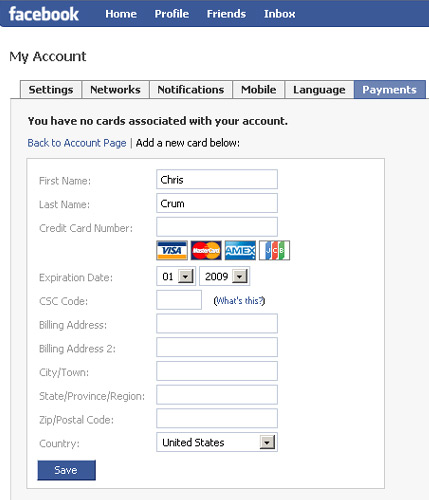
Facebook Begins Testing Payments System

Could This Eventually Take On PayPal and Google Checkout?
Facebook will reportedly begin testing a payments system in the coming weeks. This will start with a few developers, exploring ways for users to use Facebook credits with third-party apps on Facebook.
The potential for such a system is huge. If Facebook has its way, this thing could eventually be used around the web and compete with things like PayPal and Google Checkout. Nicholas Carlson with Business Insiderreports:
A source familiar with the company's long-term strategy tells us a payments system is part of a dream scenario in which Facebook not only begins making money off applications within Facebook.com, but also becomes the preferred, trusted way for its users to pay for things across the Internet. In the short term, Facebook executives believe a robust platform full of apps that either use Facebook's payments system, its upcoming ad network, or both could provide rapid revenue growth. Facebook investors hope for an IPO in the next 24 months.
Clearly, there is also a lot of potential for Facebook to make some major revenue from a payments system. Facebook has often been criticized for not being monetized like it could be. This could be a big game-changer in that respect.

"Such a system could be a powerful revenue driver for the company, which to date has largely abstained from directly monetizing the sea of applications running on the Facebook Platform," says Justin Smith at Inside Facebook. "Estimates from executives at top Facebook application and monetization companies we’ve spoken with estimate that between $300 - $500 million in transactions will happen inside applications on the Facebook Platform in 2009, numbers corroborated by other reports."
Obstacles that have prevented Facebook's payment systems testing from happening sooner may have included security issues, a lack of resources, and questions about how to treat other systems using Facebook. It will likely be a while before we see any real progress on this system, because it is only beginning alpha testing. It's definitely going to be something to keep an eye on though.
Minggu, 17 Mei 2009
CARA BERMAIN DI BUYBLOGREVIEW


Pesona Gunung Bromo